News
Easy documentation with Docsy
This is a typical blog post that includes images.
The front matter specifies the date of the blog post, its title, a short description that will be displayed on the blog landing page, and its author.
Including images
Here’s an image (featured-sunset-get.png) that includes a byline and a
caption.
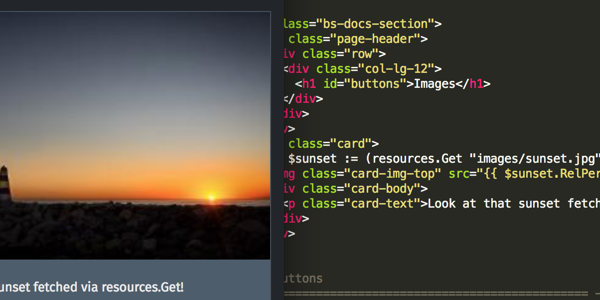
Fetch and scale an image in the upcoming
Hugo 0.43.
Photo: Riona MacNamara / CC-BY-CA
The front matter of this post specifies properties to be assigned to all image resources:
resources:
- src: "**.{png,jpg}"
  title: "Image #:counter"
  params:
    byline: "Photo: Riona MacNamara / CC-BY-CA"
To include the image in a page, specify its details like this:
{{< imgproc sunset Fill "600x300" >}}
Fetch and scale an image in the upcoming Hugo 0.43.
{{< /imgproc >}}
The image will be rendered at the size and byline specified in the front matter.
Second blog post
This is a placeholder page. For an example of the kind of content that can be added here, see the example page.
Welcome!
Welcome to the Docsy theme user guide! This guide shows you how to get started creating technical documentation sites using Docsy, including site customization and how to use Docsy’s blocks and templates.
What is Docsy?
Docsy is a theme for the Hugo static site generator that’s specifically designed for technical documentation sets and has a lot of best practices built in. Use Docsy to get a working and reliable documentation site up and running fast, and then get back to focusing on great content for your users. Learn more about Docsy.
Releases
Another Great Release
This is a placeholder page. For an example of the kind of content that can be added here, see the example page.
Welcome!
Welcome to the Docsy theme user guide! This guide shows you how to get started creating technical documentation sites using Docsy, including site customization and how to use Docsy’s blocks and templates.
What is Docsy?
Docsy is a theme for the Hugo static site generator that’s specifically designed for technical documentation sets and has a lot of best practices built in. Use Docsy to get a working and reliable documentation site up and running fast, and then get back to focusing on great content for your users. Learn more about Docsy.
技术文章
怎么下载自己的dicom文件(医众)
怎么下载自己的dicom文件(医众)
通过打开自己的云影像云胶片链接,利用浏览器开发者工具(通常按F12打开),切换到“网络”或“Network”标签页,然后刷新页面,可以看到浏览器向服务器请求了很多以 .dcm 结尾的文件。

这些 .dcm 文件,就是医学影像和相关信息的国际标准格式,全称为Digital Imaging and Communications in Medicine(DICOM)。它不仅仅是一张图片,更像是一个包含图像、患者信息、扫描参数等元数据的“数据包”。
我们可以通过以下几种方法,把这些文件下载到本地:
方法一:浏览器开发者工具手动保存(适合少量文件)
- 在开发者工具的网络请求列表中,找到类型为
Media或Document的.dcm文件。 - 右键点击该请求,选择“Open in new tab”(在新标签页打开)。
- 浏览器会显示该DICOM文件的原始数据流,此时可右键选择“Save as”(另存为),保存到本地。
方法二:使用浏览器插件批量下载(高效便捷)
可以安装一些浏览器插件(如“Chrono Download Manager”等),它们能自动捕获页面加载的所有资源。启用插件后,它可以扫描当前页面加载的所有.dcm文件,并提供一键批量下载功能,非常适合下载包含数百张切片的完整检查数据。
方法三:使用专业下载工具(适合技术用户)
- 在开发者工具中,复制任意一个.dcm文件请求的完整URL。
- 观察URL结构,通常文件名部分是递增的数字或唯一的ID。
- 使用支持批量任务的下载软件(如IDM, JDownloader等),利用“站点抓取”功能,根据URL规律生成任务列表,一次性下载全部文件。
温馨提示
- 文件查看:下载后的.dcm文件无法直接用普通看图软件打开,需要使用专业的DICOM查看器(如RadiAnt Viewer, microDicom, 3D Slicer等)进行浏览和分析。
- 隐私保护:DICOM文件包含详细的患者隐私信息,请妥善保管,切勿随意公开分享。
下载自己的云影像云胶片dicom数据
告别物理胶片:手把手教你下载自己的云影像(DICOM)数据
在数字化医疗时代,传统的厚重X光胶片正逐渐成为历史。现在,医院通过“云影像”(也称云胶片)技术,将你的CT、MRI等检查资料上传至云端。这不仅环保,更方便你在异地就医或寻求第二诊疗意见时随时调阅。
但是,很多患者朋友拿到报告单后,面对二维码和手机界面往往不知所措:“我到底怎么把原始的、医生能用的DICOM数据下载到手机或电脑里?”
别担心,本文将为你详细拆解获取这些关键医疗数据的步骤。
第一步:找到入口
获取云影像通常有两个最常见的入口,你可以根据手头的资料选择:
- 扫描报告单二维码:这是最直接的方式。在你的纸质检查报告单右上角(或显眼位置),通常印有一个二维码。使用微信或浏览器扫描它,即可跳转到查看页面。
- 关注医院公众号:搜索并关注你进行检查的医院官方微信服务号(例如“XX医院服务中心”)。在菜单栏的“医疗服务”、“检查报告”或“云影像”板块中,输入你的登记号(或就诊卡号)、手机号及验证码登录,即可找到历史检查记录。
第二步:下载数据
进入影像浏览界面后,你会发现界面上通常有两种“下载”选项,请务必区分它们,因为用途完全不同:
- 下载报告(图片格式):这通常是PDF或JPEG格式。它只是最终的诊断结论,不包含原始的、可调节参数的影像信息,对于需要看片的医生来说价值有限。
- 下载DICOM(原始数据):这才是你需要的核心文件。DICOM是医学影像的国际标准格式,包含了所有的切片信息、分辨率参数等。
如何操作下载DICOM:
- 在影像查看界面,寻找右上角或侧边栏的**“下载”、“导出”或“更多”**按钮。
- 点击后,系统通常会弹出格式选择框。请务必选择**“DICOM格式”**(有时也标注为“原始数据”)。
- 注意:如果文件较大(超过500M),手机端可能会提示下载失败或不支持。此时,建议使用电脑端下载。你可以复制页面上的链接,在电脑浏览器(推荐Chrome或360浏览器)中打开,按照提示进行下载。
第三步:存储与分享
下载完成后,文件通常是一个压缩包(.zip)或一系列.dcm文件。你可以将其解压并保存在U盘、移动硬盘或云端网盘中。
当你需要给异地的专家看诊,或者转诊到其他医院时,只需将这个U盘交给医生,或者通过加密渠道发送给对方。现在的医生工作站都能直接读取这些数据,进行三维重建(3D)或调节窗宽窗位,这比看纸质胶片要清晰得多。
温馨提示
- 时效性:云影像通常会在云端保留较长时间(如半年至两年),但建议你尽早下载并本地备份,以免云端链接过期导致数据被清理。
- 软件兼容:如果你需要在自己的电脑上查看DICOM文件,可以安装免费的阅片软件,如“RadiAnt DICOM Viewer”或医院提供的专用浏览客户端。
掌握这些技巧,你就掌握了自己医疗数据的主动权。下次检查时,不妨试着把这套流程走一遍,让看病就医不再因“带不走”的胶片而烦恼。
指导协助下载请加微信

WPF 鼠标轨迹追踪软件 WpfMouseTrace 开源
WPF 鼠标轨迹追踪项目技术说明
项目概述
这是一个基于 WPF (Windows Presentation Foundation) 开发的鼠标轨迹追踪工具,能够在屏幕上实时显示鼠标移动的轨迹效果。项目采用了多种技术优化,实现了高性能的图形渲染和用户友好的配置界面。
核心功能
1. 实时鼠标轨迹显示
- 通过 Win32 API 获取全局鼠标位置
- 使用自定义 Canvas 控件进行高性能渲染
- 支持线条绘制,轨迹平滑过渡
- 渐变透明度和粗细效果
2. 系统托盘集成
- 托盘图标显示
- 右键菜单(设置、退出)
- 双击图标打开设置
3. 可配置化
- 最大轨迹数量可调(5-100)
- 轨迹颜色自定义
- 配置持久化保存


技术架构
1. 主窗口 (MainWindow)
1.1 Win32 API 集成
[DllImport("user32.dll")]
public static extern bool GetCursorPos(out POINT lpPoint);

[DllImport("user32.dll")]
public static extern IntPtr GetWindowLong(IntPtr hWnd, int nIndex);

[DllImport("user32.dll")]
public static extern int SetWindowLong(IntPtr hWnd, int nIndex, int dwNewLong);
使用 P/Invoke 调用 Windows API:
GetCursorPos: 获取全局鼠标坐标GetWindowLong/SetWindowLong: 修改窗口样式
1.2 鼠标穿透功能
private const int GWL_EXSTYLE = -20;
private const int WS_EX_TRANSPARENT = 0x00000020;

SetWindowLong(hwnd, GWL_EXSTYLE,
    ((int)GetWindowLong(hwnd, GWL_EXSTYLE) | WS_EX_TRANSPARENT));
通过设置 WS_EX_TRANSPARENT 标志,使窗口对鼠标事件透明,实现点击穿透效果,不影响底层窗口的操作。
1.3 定时器机制
_timer = new DispatcherTimer();
_timer.Interval = TimeSpan.FromMilliseconds(33);
_timer.Tick += OnTimerTick;
_timer.Start();
使用 33ms 间隔(约 30fps)的定时器:
- 平衡性能和视觉效果
- 降低内存占用
- 减少垃圾回收压力
1.4 坐标转换
var point = PointFromScreen(new System.Windows.Point(pt.X, pt.Y));
将屏幕坐标(像素)转换为窗口内的设备无关像素(DIP),确保在不同 DPI 设置下正确显示。
2. 自定义绘制控件 (TrailCanvas)
2.1 继承 Canvas
public class TrailCanvas : Canvas
{
    protected override void OnRender(DrawingContext drawingContext)
    {
    }
}
重写 OnRender 方法实现自定义绘制逻辑。
2.2 轨迹点管理
public Queue<Point> TrailPoints { get; set; } = new Queue<Point>();
private Point[] _pointsCache = new Point[MaxTrailLength];
- 使用
Queue<Point>存储轨迹点 - 使用缓存数组避免频繁内存分配
- 动态调整缓存大小
2.3 渲染逻辑
for (int i = 0; i < count - 1; i++)
{
    double alpha = (i / (double)count);
    byte alphaByte = (byte)(alpha * 200);

    var brush = new SolidColorBrush(Color.FromArgb(alphaByte, TrailColorR, TrailColorG, TrailColorB));
    double thickness = 8 * alpha + 2;
    var pen = new Pen(brush, thickness);
    drawingContext.DrawLine(pen, _pointsCache[i], _pointsCache[i + 1]);
}
- 渐变透明度:旧轨迹点更透明
- 渐变粗细:新轨迹点更粗
- 使用
DrawLine绘制连续线条
3. 设置管理 (Settings)
3.1 单例模式
private static Settings _instance;

public static Settings Instance
{
    get
    {
        if (_instance == null)
        {
            _instance = Load();
        }
        return _instance;
    }
}
确保全局唯一的设置实例。
3.2 数据持久化
[DataContract]
public class Settings : INotifyPropertyChanged
{
    [DataMember]
    public int MaxTrailLength { get; set; }

    public void Save()
    {
        var serializer = new DataContractJsonSerializer(typeof(Settings));
        using (var stream = new FileStream(SettingsFilePath, FileMode.Create))
        {
            serializer.WriteObject(stream, this);
        }
    }
}
- 使用
DataContractJsonSerializer序列化配置 - 保存到
%AppData%\WpfMouseTrace\settings.json - 实现
INotifyPropertyChanged支持数据绑定
3.3 属性变更通知
public event PropertyChangedEventHandler PropertyChanged;

protected void OnPropertyChanged(string propertyName)
{
    PropertyChanged?.Invoke(this, new PropertyChangedEventArgs(propertyName));
}
支持 WPF 数据绑定,实现 UI 自动更新。
4. 系统托盘 (NotifyIcon)
4.1 图标加载
var iconStream = System.Windows.Application.GetResourceStream(
    new Uri("pack://application:,,,/Resources/favicon(1).ico"))?.Stream;

_notifyIcon = new NotifyIcon
{
    Icon = iconStream != null ? new System.Drawing.Icon(iconStream) : SystemIcons.Application,
    Text = "鼠标轨迹追踪",
    Visible = true
};
从程序资源加载图标,使用 WPF Pack URI。
4.2 右键菜单
var contextMenu = new ContextMenuStrip();
var settingsItem = new ToolStripMenuItem("设置");
settingsItem.Click += (s, e) => OpenSettings();

var exitItem = new ToolStripMenuItem("退出");
exitItem.Click += (s, e) => ExitApplication();

contextMenu.Items.AddRange(new ToolStripItem[] { settingsItem, exitItem });
_notifyIcon.ContextMenuStrip = contextMenu;
使用 Windows Forms 的 ContextMenuStrip 创建托盘菜单。
5. 颜色选择器集成
private void ColorPreviewBorder_MouseLeftButtonUp(object sender, MouseButtonEventArgs e)
{
    var colorDialog = new ColorDialog
    {
        Color = System.Drawing.Color.FromArgb(
            _settings.TrailColorR,
            _settings.TrailColorG,
            _settings.TrailColorB),
        FullOpen = true
    };

    var result = Dispatcher.Invoke(() => colorDialog.ShowDialog());

    if (result == System.Windows.Forms.DialogResult.OK)
    {
        _settings.TrailColorR = colorDialog.Color.R;
        _settings.TrailColorG = colorDialog.Color.G;
        _settings.TrailColorB = colorDialog.Color.B;
    }
}
- 使用
ColorDialog提供系统颜色选择器 - 通过
Dispatcher.Invoke确保在主线程显示 - 自动更新设置属性
性能优化
1. 内存优化
1.1 对象缓存
private Point[] _pointsCache = new Point[MaxTrailLength];
避免每次渲染都创建新数组,减少 GC 压力。
1.2 降低刷新率
_timer.Interval = TimeSpan.FromMilliseconds(33); // 30fps
从 60fps 降到 30fps,减少内存分配频率。
1.3 资源释放
protected override void OnClosing(CancelEventArgs e)
{
    _notifyIcon?.Dispose();
    base.OnClosing(e);
}
及时释放托盘图标资源。
2. 渲染优化
2.1 使用 DrawingContext
protected override void OnRender(DrawingContext drawingContext)
{
    drawingContext.DrawLine(pen, _pointsCache[i], _pointsCache[i + 1]);
}
直接使用 DrawingContext 绘制,避免创建大量 UI 元素。
2.2 最小化重绘
TrailCanvas.InvalidateVisual();
只在数据变化时触发重绘,避免不必要的渲染。
技术亮点
1. WPF 与 WinForms 混合使用
- WPF 用于主界面和渲染
- WinForms 用于托盘图标和颜色选择器
- 通过互操作实现无缝集成
2. P/Invoke 调用 Windows API
- 获取全局鼠标位置
- 修改窗口样式实现鼠标穿透
- 跨平台能力(仅限 Windows)
3. 数据绑定
- 设置属性实现
INotifyPropertyChanged - XAML 中使用
Binding自动更新 UI - 简化代码逻辑
4. 资源管理
- 图标作为资源嵌入程序集
- 使用 Pack URI 引用资源
- 统一的资源管理方式
项目结构
WpfMouseTrace/
├── WpfMouseTrace/
│   ├── MainWindow.xaml          # 主窗口界面
│   ├── MainWindow.xaml.cs       # 主窗口逻辑
│   ├── TrailCanvas.cs          # 自定义绘制控件
│   ├── SettingsWindow.xaml      # 设置窗口界面
│   ├── SettingsWindow.xaml.cs   # 设置窗口逻辑
│   ├── Settings.cs            # 设置管理类
│   ├── App.xaml              # 应用程序入口
│   ├── App.xaml.cs           # 应用程序初始化
│   ├── WpfMouseTrace.csproj # 项目文件
│   └── Resources/
│       └── favicon(1).ico   # 应用图标
依赖项
.NET Framework
- 目标框架:.NET Framework 4.5.2
程序集引用
- PresentationCore
- PresentationFramework
- WindowsBase
- System.Xaml
- System.Drawing
- System.Windows.Forms
扩展性
1. 添加新的轨迹效果
可以扩展 TrailCanvas 类,支持不同的渲染模式:
- 圆点模式
- 虚线模式
- 粒子效果
2. 添加更多设置项
在 Settings 类中添加新属性:
- 轨迹粗细范围
- 淡出速度
- 启用/禁用功能
3. 多主题支持
扩展设置系统,支持:
- 预设主题
- 导入/导出配置
- 主题切换
总结
本项目展示了 WPF 开发的多个核心技术:
- 自定义控件和渲染
- Win32 API 集成
- 数据绑定和 MVVM 模式
- 性能优化技巧
- 混合使用 WPF 和 WinForms
通过合理的架构设计和性能优化,实现了一个功能完整、性能良好的鼠标轨迹追踪工具。
云影像、云胶片 DICOM 下载指南
什么是云影像和云胶片
云影像和云胶片是现代医疗影像服务的重要组成部分。随着医疗信息化的发展,传统的胶片正在逐步被数字化影像所替代。
云影像
云影像是指将医学影像数据存储在云端服务器上,患者和医生可以通过互联网随时随地访问和查看这些影像资料。这种方式具有以下优势:
- 便捷性:无需携带实体胶片,通过手机或电脑即可查看
- 安全性:云端存储提供多重备份,数据不易丢失
- 共享性:方便不同医疗机构之间的影像资料共享
- 环保性:减少胶片使用,降低环境污染
云胶片
云胶片是传统胶片的数字化替代品,通常以 DICOM 格式存储。它不仅包含了影像数据,还包含了患者的相关信息、检查参数等完整信息。
DICOM 格式简介
DICOM(Digital Imaging and Communications in Medicine)是医学影像领域的国际标准格式。它具有以下特点:
- 标准化的医学影像存储格式
- 包含丰富的元数据信息
- 支持多种医学影像类型(CT、MRI、X光等)
- 便于不同医疗系统之间的数据交换
云影像 DICOM 下载方法
方法一:通过医院提供的云平台下载
大多数医院都会提供专门的云影像平台,患者可以通过以下步骤下载 DICOM 文件:
- 登录平台:使用医院提供的账号和密码登录云影像平台
- 查找检查记录:在个人中心或检查记录中找到需要下载的影像
- 选择下载格式:通常提供 DICOM 原始文件和压缩包两种格式
- 执行下载:点击下载按钮,等待文件下载完成
方法二:通过第三方医学影像查看器下载
一些第三方医学影像软件也支持从云平台下载 DICOM 文件:
- RadiAnt DICOM Viewer:支持从 PACS 服务器下载影像
- Horos:开源的医学影像查看器,支持多种数据源
- Weasis:基于 Web 的医学影像查看器
方法三:使用 API 接口下载
对于开发者,可以通过医院的 API 接口获取 DICOM 数据:
import requests

def download_dicom(api_url, access_token, study_id, save_path):
    headers = {
        'Authorization': f'Bearer {access_token}',
        'Content-Type': 'application/json'
    }

    params = {
        'studyId': study_id,
        'format': 'dicom'
    }

    response = requests.get(api_url, headers=headers, params=params)

    if response.status_code == 200:
        with open(save_path, 'wb') as f:
            f.write(response.content)
        print('DICOM 文件下载成功')
    else:
        print(f'下载失败: {response.status_code}')

# 使用示例
download_dicom(
    api_url='https://api.hospital.com/v1/studies/download',
    access_token='your_access_token',
    study_id='ST123456',
    save_path='medical_image.dcm'
)
DICOM 文件查看工具
下载 DICOM 文件后,需要使用专门的医学影像查看器来打开:
桌面端查看器
-
RadiAnt DICOM Viewer(Windows)
- 界面友好,操作简单
- 支持多种影像处理功能
- 免费试用,付费版功能更全
-
Horos(macOS)
- 完全免费开源
- 功能强大,支持高级影像分析
- 适合医学专业人士使用
-
3D Slicer(跨平台)
- 支持三维重建
- 适合科研和教学使用
- 功能最为全面
移动端查看器
- RadiAnt Mobile(iOS/Android)
- DICOM Viewer(Android)
- Miele-LXIV(iOS)
注意事项
数据安全
- 保护好登录凭证,避免账号被盗用
- 下载后的 DICOM 文件应妥善保管,避免泄露患者隐私
- 不要在公共网络环境下下载敏感医疗数据
文件管理
- DICOM 文件通常较大,下载前确保有足够的存储空间
- 建议按检查日期和类型对文件进行分类存储
- 定期备份重要的医学影像数据
兼容性问题
- 不同厂商的 DICOM 文件可能存在细微差异
- 确保使用的查看器支持对应的 DICOM 版本
- 遇到无法打开的文件时,联系医院技术支持
常见问题
Q1: 为什么下载的 DICOM 文件无法打开?
A: 可能的原因包括:
- 文件下载不完整,尝试重新下载
- 查看器版本过旧,更新到最新版本
- 文件格式不兼容,尝试使用其他查看器
Q2: DICOM 文件能否转换为普通图片格式?
A: 可以。大多数医学影像查看器都支持将 DICOM 文件导出为 JPG、PNG 等常见图片格式。但需要注意,转换后的图片会丢失部分医学信息,仅用于查看,不能用于诊断。
Q3: 云影像数据保存多久?
A: 不同医院的政策不同,一般保存 3-15 年不等。建议及时下载重要的影像资料到本地保存。
Q4: 下载 DICOM 文件需要付费吗?
A: 大多数医院提供免费的云影像下载服务,但部分医院可能会对超过一定时间或次数的下载收取费用。具体请咨询医院相关部门。
总结
云影像和云胶片为患者和医生提供了便捷的医学影像访问方式。通过掌握 DICOM 文件的下载方法,患者可以更好地管理自己的健康档案,医生也能更高效地进行远程会诊和诊断。在使用过程中,要注意数据安全和隐私保护,合理利用这些数字化医疗资源。